
What this guide answers
- Does a focused sidebar stop someone opening a page?
No. Focus only changes what is shown in the sidebar.
- Can each committee member choose their own areas?
Yes. Each person ticks their own areas using Personalise, and the choice is saved to their account for that organisation.
- What if someone needs a page that isn't showing?
They can switch to All pages, under the search box, at any time, or type the page name into Find a page….
South Africa edition. This guide is written for volunteer-run clubs in South Africa. Where rules differ — grants, tax, incorporation, safeguarding — follow the South Africa-specific pointers below or check with your national body.
Open the admin area of a full club platform and you may meet seventy pages in a sidebar: members, memberships, registrations, news, newsletters, shop, payments, facilities, competitions, waivers, incidents, and more. For the volunteer who runs the club's money, most of that is noise. For the volunteer who writes the weekly newsletter, a different slice is noise. Neither is a good reason to hand the software back.
The usual fix is a shorter menu per person. This guide shows how to do that, and how to map real committee roles to the views they need. It also covers the honest limits. A tidy view is not the same thing as a locked door, and the two shouldn't be confused.
Two different problems: what you can open, and what you see
People often lump these together, so separate them first.
- Access is what a person is allowed to do. In ClubHelix, the people who run the admin area are Admins or Moderators, with further permissions layered on for particular jobs. Access protects your members' data and your money. The roles and permissions feature is where this lives.
- Focus is what a person is shown. It's a convenience for people who are already allowed in, and it changes nothing about what they can do.
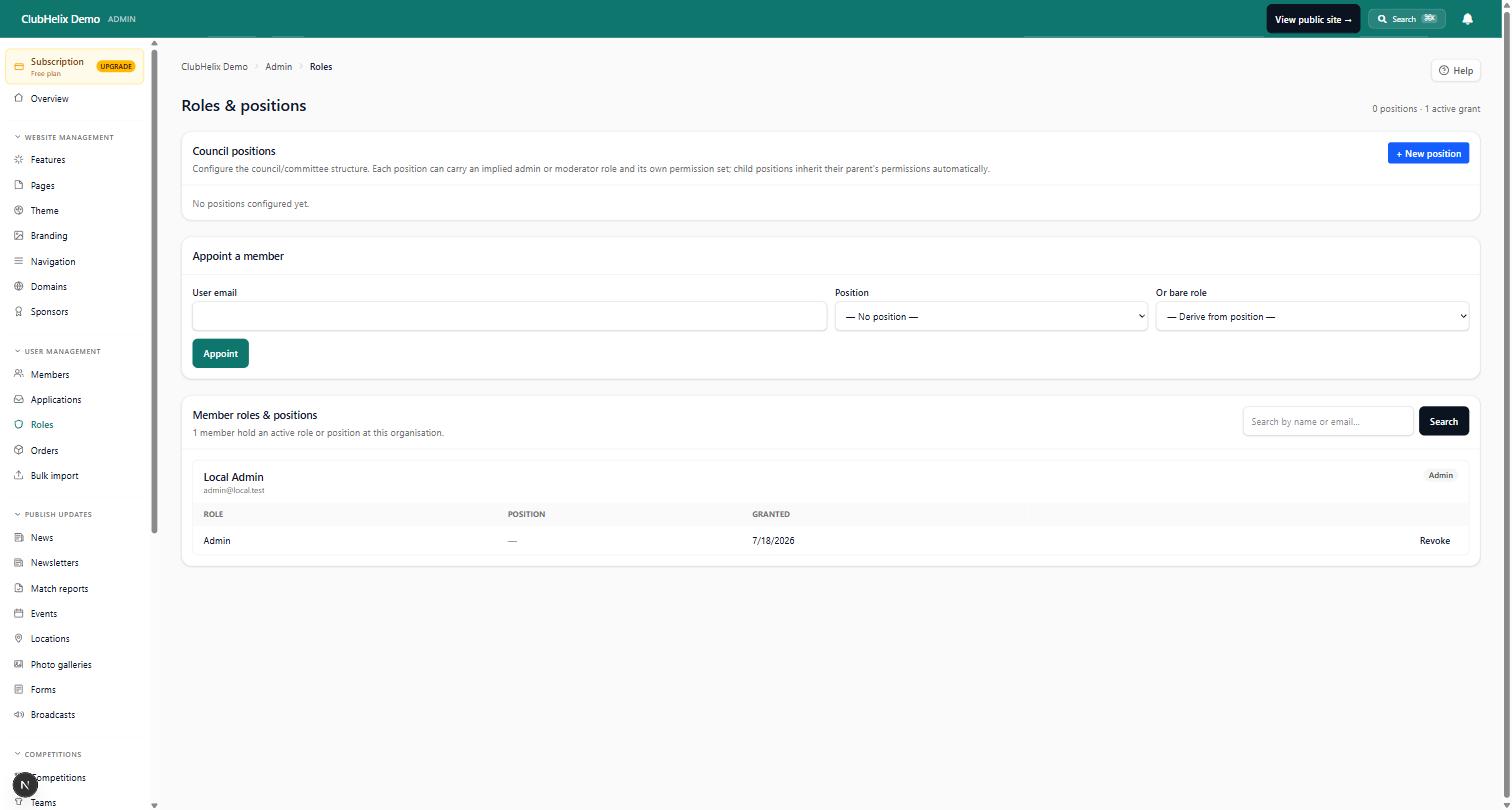
Mixing them up causes two kinds of trouble. If you rely on a short menu to keep someone out of the payments page, you haven't protected anything, because it's still there when they switch views. And if you tighten access to reduce clutter, you'll find the secretary can't open something they needed on a Tuesday night. Set access by what the person should be able to do. Set focus by what they do most.
How a focused admin view works in ClubHelix
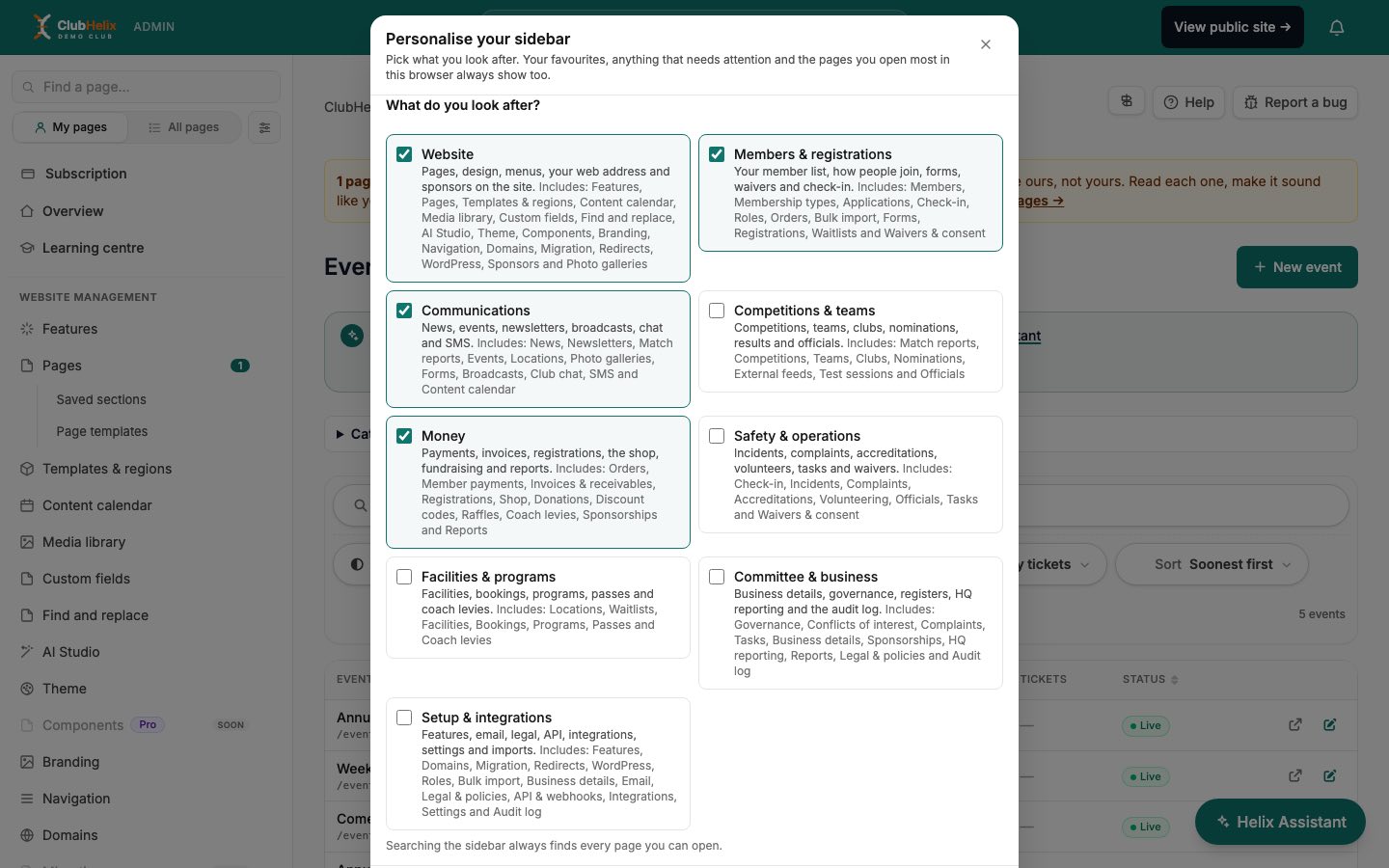
ClubHelix groups its admin pages into nine areas, each representing a job a club volunteer does:
- Website – pages, theme, branding, navigation, media, domains and so on.
- Members & registrations – the member list, membership types, applications, check-in, forms, registrations, waitlists and waivers.
- Communications – news, newsletters, events, broadcasts, chat and SMS.
- Competitions & teams – competitions, teams, clubs, nominations and officials.
- Money – orders, payments, invoices, registrations, the shop, donations, discounts, raffles and reports.
- Safety & operations – check-in, incidents, complaints, credentials and volunteers.
- Facilities & programs – facilities, bookings, programs and passes.
- Committee & business – governance, conflicts, complaints, tasks, business details, sponsorships, legal documents and the activity log.
- Setup & integrations – features, domains, email, legal, API and integrations.
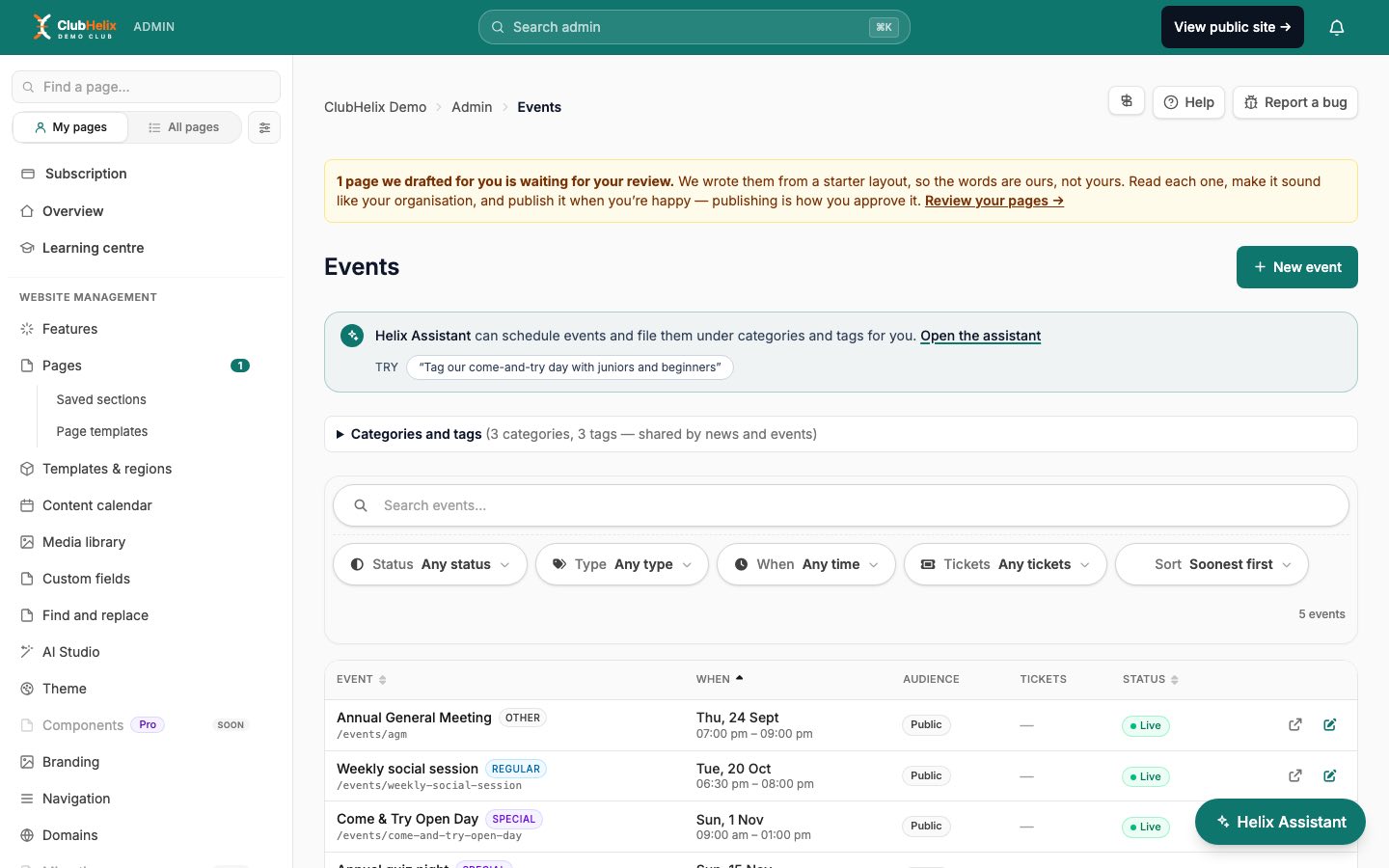
Each person picks the areas they look after, using Personalise at the top of the sidebar (or Personalise sidebar on the Learning centre). Areas overlap on purpose, because real jobs do. Registrations sit in both Members and Money, since the registrar and the treasurer both care about them.
A focused sidebar always keeps a few things, whatever you pick: Overview, Subscription and the Learning centre; the page you're on; anything with a number badge waiting for you; your favourites; and the five pages you open most. The focus view only ever hides pages. It never shows one your role can't open.
If someone has never chosen, they get a sensible start based on their role: an Admin begins with Website, Members, Communications and Money, and a Moderator with Website and Communications.
Role by role: which areas to tick
These are starting points, not rules. Your club may split the jobs differently, and a small club's one person may wear four hats.
Treasurer
Tick: Money, plus Committee & business if they also prepare the committee's financial reports.
Their sidebar then leads with orders, payments, invoices, registrations, the shop, donations, discounts, raffles and reports. They'll look at payments and invoices constantly, and at reports before every meeting. If your club collects fees through registrations, they'll live there too. Our guides on what a club treasurer does and the treasurer's report template pair well with this view.
Registrar or membership secretary
Tick: Members & registrations. Add Money only if they also chase unpaid fees.
They'll see the member list, membership types, applications, forms, registrations, waitlists and waivers. The badge counts on applications and form responses do a lot of the work here: the pages that need attention rise to the front without the registrar hunting for them.
Secretary
Tick: Committee & business, and Members & registrations if they keep the member register.
The secretary's day is meetings, minutes, tasks, conflicts of interest and legal documents. That is the Committee & business area. See what a club secretary does for the full role, and committee task management for the tasks side.
Communications officer
Tick: Communications, and Website if they also maintain pages.
News, newsletters, events, broadcasts, chat and SMS cover most of the job. Adding Website brings in pages, media, galleries and sponsors.
Coach coordinator or program manager
Tick: Competitions & teams, and Facilities & programs.
Teams, competitions, officials, programs and passes sit in those two areas. If your club invoices coaches a levy, that page is in Facilities & programs too.
Safety or welfare officer
Tick: Safety & operations, and Committee & business if they handle complaints.
Incidents, complaints, credentials and volunteers are the working set for this role. Check the attention badges first. They surface what is waiting.
Website volunteer
Tick: Website, and Setup & integrations if they also manage your domain, email sender or connections.
This is the person who touches the most technical pages, so keep their view just as intentional.
President or club manager
Tick: Probably very little. Let the focused view show them the Overview, anything with a badge, their favourites and their five most-visited pages, then add areas if they find themselves going somewhere often.
A leader who dips into everything is the person for whom All pages is most useful.
Setting it up, step by step
- Decide the roles first. Before anyone touches the sidebar, list your committee positions and who holds them. The committee roles and responsibilities guide gives you a starting list.
- Set access. Give each person the role their job genuinely needs. The sidebar can only narrow what they see; it cannot widen it.
- Ask each person to open Personalise and tick their areas. It takes about a minute. The choice is saved to their account for that organisation, so it follows them across devices.
- Get them to star the pages they use weekly. Favourites appear in their own group at the top.
- Tell them about the All pages switch. It sits under the search box, opposite My pages. It's there for the day someone needs a page outside their area, and their choice is remembered.
- Review after a month. Ask what people reached for that wasn't visible. Adjust their areas rather than leaving them to fight the menu.
Search is the safety net. The Find a page… box and the command palette look at every page the person can open, whether or not the sidebar is showing it. So a treasurer who needs a one-off look at galleries types "galleries" and goes straight there.
Limits worth knowing
- Focus is not security. It hides pages from view for convenience. If a page must be off limits to someone, use roles and permissions, not the sidebar.
- Most-visited is per browser. The five pages someone opens most often are counted in that browser only. On a new device, that part builds up again with use. The areas they ticked follow them.
- A hidden page isn't switched off. If a page is missing because your organisation hasn't turned a module on, that's a separate setting under Features. Focus doesn't change it.
- One person, one view. Each person's choices are their own. Changing yours doesn't touch anyone else's.
Frequently asked questions
Does a focused sidebar stop someone opening a page?
No. Focus only changes what is shown in the sidebar. What a person can open is set by their role and permissions, and the search box and command palette still find every page their role allows. If a page must be off limits, change their access, not their view.
Can each committee member choose their own areas?
Yes. Each person ticks their own areas using Personalise, and the choice is saved to their account for that organisation. Changing yours doesn't change anyone else's.
What if someone needs a page that isn't showing?
They can switch to All pages, under the search box, at any time, or type the page name into Find a page…. If the page is missing because a module isn't turned on, that is a separate setting under Features.
Making it stick
A role-based view works best alongside two other habits. Write each role's recurring jobs into a position description, so that the person who inherits the sidebar also inherits the job. And use the built-in page tours when someone new takes over, so the screens are explained where they live.
Volunteers are short of time, and every minute spent hunting through a menu is a minute not spent on the club. If you'd like to see how a focused view feels with your own roles, set up your club's system and open Personalise.
Keep reading — how to run a club with no time covers the habits that keep a small committee sustainable.


