
What this guide answers
- What if the new member isn't confident with computers?
Slow the plan down rather than skipping steps. Tours go at the reader's pace and can be repeated as often as they like, which suits a nervous user better than a one-off demo.
- Should the outgoing committee member still be involved?
Yes, for the conversation on day 1 and for questions in the first fortnight.
- How do we know it worked?
Check the day 7 answers, then ask the new member to run one of their recurring jobs unaided in week three.
USA edition. This guide is written for volunteer-run clubs in the United States. Where rules differ — grants, tax, incorporation, safeguarding — follow the USA-specific pointers below or check with your national body.
The AGM is done, the new treasurer has been elected, and the old one has sent a four-line email that ends "let me know if you have any questions". Two weeks later the new treasurer still hasn't logged in, because the club's software looks like a cockpit and nobody has had an evening to sit beside them.
This is the most common way committee software goes to waste. The system is fine. The handover is the weak point. A new committee member needs two things in their first week: a clear picture of what they are now responsible for, and enough hands-on time in the screens that matter to their job. The first is a conversation. The second can mostly run itself.
This guide sets out a seven-day plan to get a new committee member confident with your club software. It leans on the guided tours, the ten-chapter tutorial and the Learning centre built into ClubHelix, and it keeps the handover conversations that only a person can have. It sits alongside the committee handover checklist, which covers the property side (accounts, keys, documents), and the new committee member induction pack, which covers the first 90 days. This one is about the software, and only the first week.
What "up to speed" means (and what it doesn't)
Decide the goal before day one, or the week drifts. For a new committee member on a club system, "up to speed" is a short list:
- They can sign in, with their own account, and they know which pages are theirs.
- They can do the three or four recurring jobs of their role without asking anyone.
- They know where to look when something needs attention, and who to ask when it's not clear.
- They know what they must not touch, because it belongs to someone else's portfolio.
It does not mean knowing every page. ClubHelix has more than seventy admin pages because it serves clubs that run shops, facilities, competitions and programs. A treasurer will never open most of them, and that's fine. The aim is depth on their own area and a map of the rest.
Before day one: give them the right access
Do this before they open the software, ideally the day they're elected.
- Create their own account and give them a role. In ClubHelix the people who run the admin area are Admins or Moderators, and what each can open follows from that role. Give the new person the level their job genuinely needs, no higher. A secretary and a treasurer often both need Admin; a volunteer who only needs part of the admin area may suit Moderator, who sees a trimmed sidebar. The roles and permissions feature covers what each level allows.
- Never share the old holder's login. A shared password means nobody can tell who changed what, and the old holder's access never goes away. Remove the departing person's access the same day you add the new person's.
- Send them one link, not twelve. The link is to the admin area. Everything else in this plan is already inside it.
Day 1: a short call, then let them look around
Spend 30 minutes together, on a call or at a table, before they spend any time alone with the software. Cover three things:
- What the role is for. Which jobs recur monthly, which ones are annual, and which are urgent. The old holder knows this and the software doesn't.
- What's outstanding right now. Open items, half-finished tasks, anything promised to a member. This is the part a handover document usually forgets.
- Who to ask. Name one person, ideally not the previous holder, who can answer questions during the week.
Then they sign in. The first screen is the Overview, which leads with what needs attention: overdue applications, form responses waiting for a reply, orders waiting to be fulfilled, and events coming up this week. It's a good first look at the club as it is today, and it tells them where the pressure points are before anyone has explained a thing.
Day 2: set up the sidebar so it shows only their job
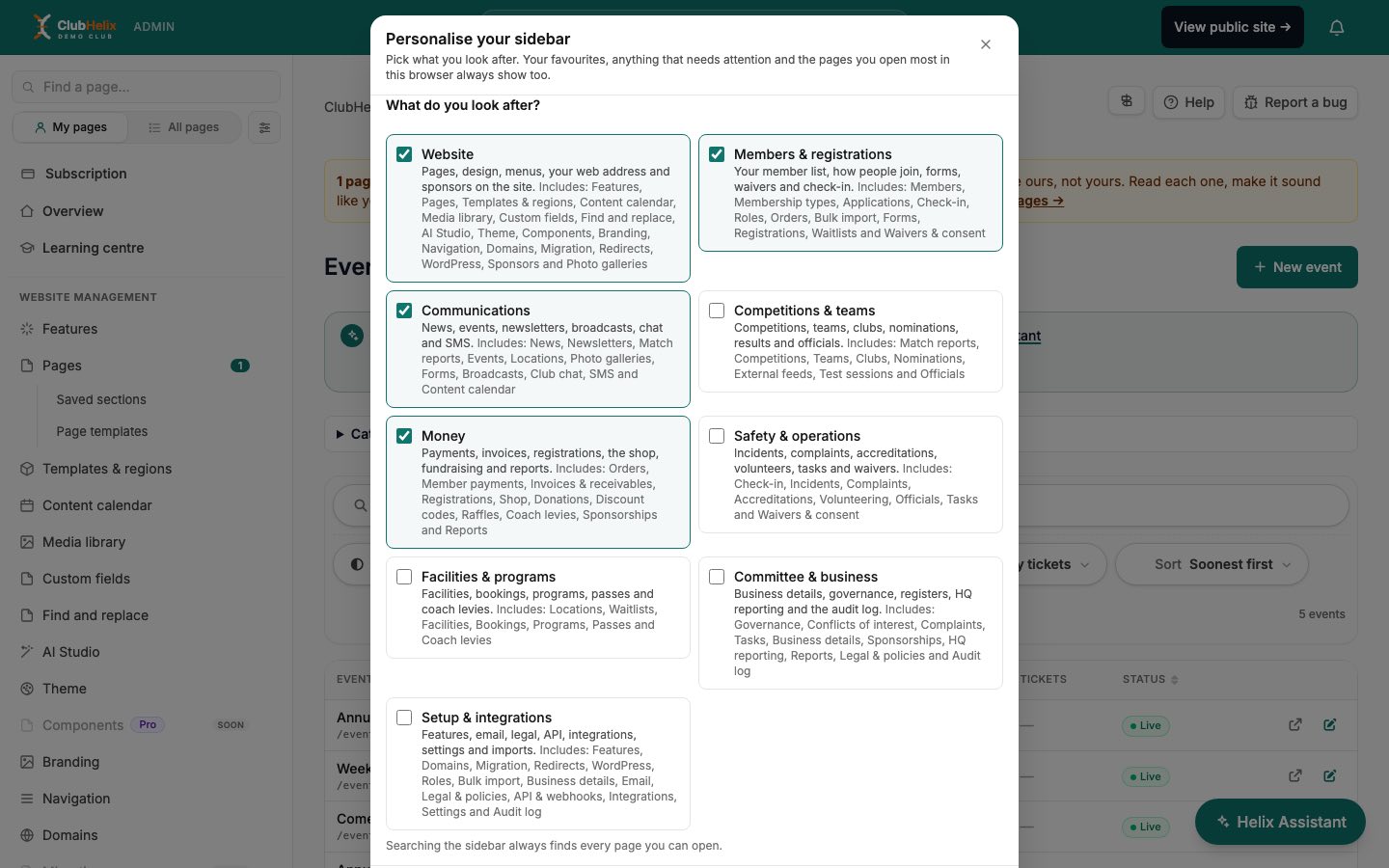
Open the admin sidebar for the first time and it can feel like walking into a hardware shop. ClubHelix starts with a focused sidebar that shows the pages for the areas a person looks after, rather than all of them, and a switch at the top says so: My pages or All pages, with a Personalise button beside it.
On day two, have the new member click Personalise and tick the areas that match their role. There are nine areas, including Website, Members & registrations, Communications, Money, and Committee & business. If they've never chosen, an Admin starts with Website, Members, Communications and Money. A treasurer should tick Money. A secretary will want Committee & business and probably Members & registrations.
Two honest notes. Personalising the sidebar only hides pages from view; it doesn't change what the person is allowed to do. The search box and the command palette still find every page their role can open, so nothing is lost. If they need a page that isn't showing, they can switch to All pages at any time. Our companion guide on a club admin view that shows only your jobs goes through which areas suit which committee role.
Days 3 and 4: tour the pages they'll use most
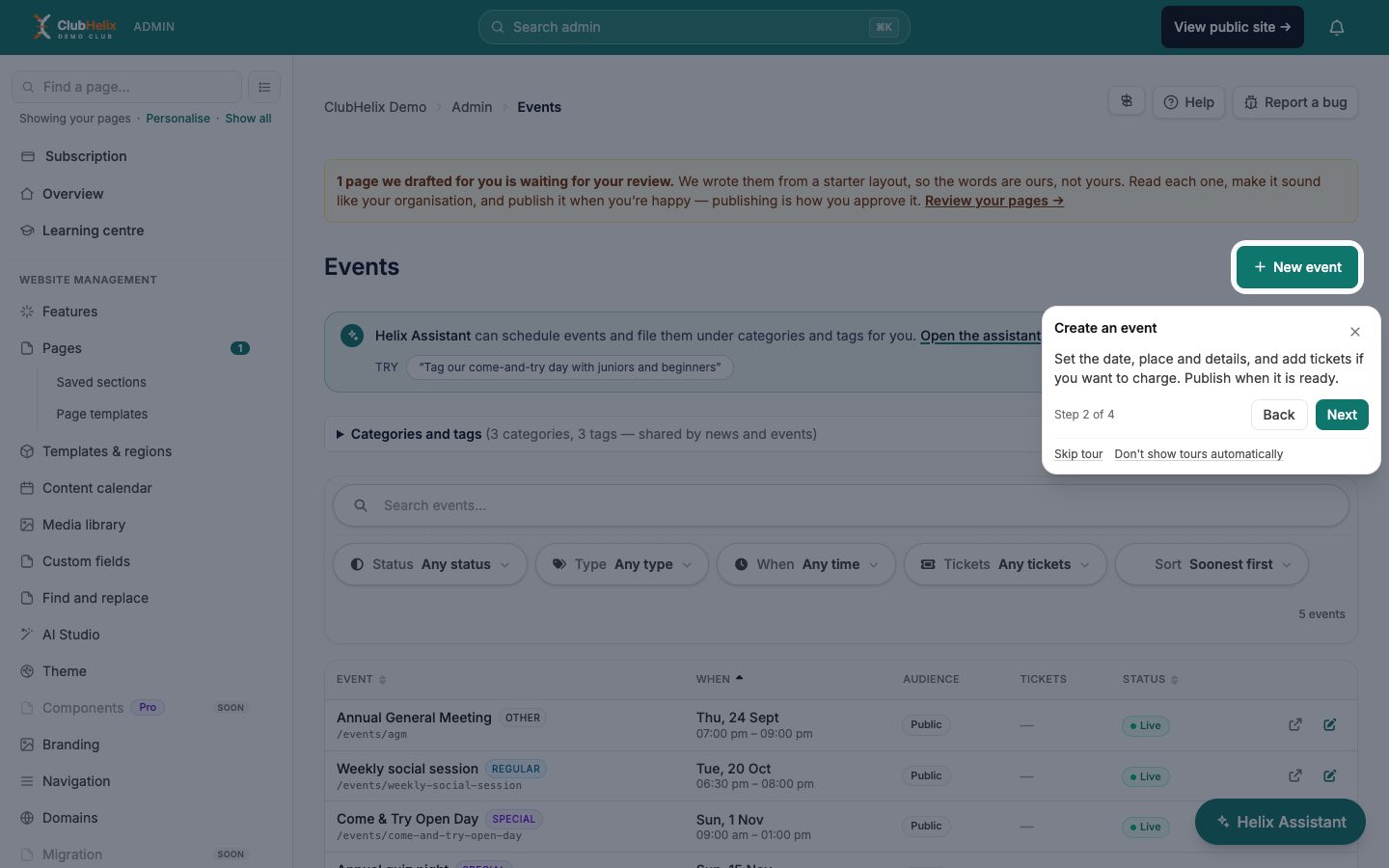
Now the hands-on part. Every admin page in ClubHelix has a guided tour. On a page, press Tour this page, beside the ? help button. The tour highlights the controls that matter on that page, one at a time, with a short explanation of each. Next and Back (or the arrow keys) move between steps, Esc closes it, and Finish completes it.
Pick the four or five pages the role uses every month. For a treasurer, that might be Payments, Invoices and Reports. For a secretary, Members, Governance and Tasks. For a communications officer, News, Broadcasts and Events.
A good rhythm is one page a sitting: take the tour, then do one real job on that page straight away. Let the tour show where things are, then do a real task so the memory sticks. A tour of the Members page followed by finding a real member and updating a real phone number is worth more than any number of tours in the abstract.
Two details that help:
- The first time a person opens a page they may see a small New here? Take the 1-minute tour offer. They can accept it or choose Not now.
- Progress is saved to their account, so they can stop halfway and resume later, including on a different device.
Day 5: the main tutorial, in one or two sittings
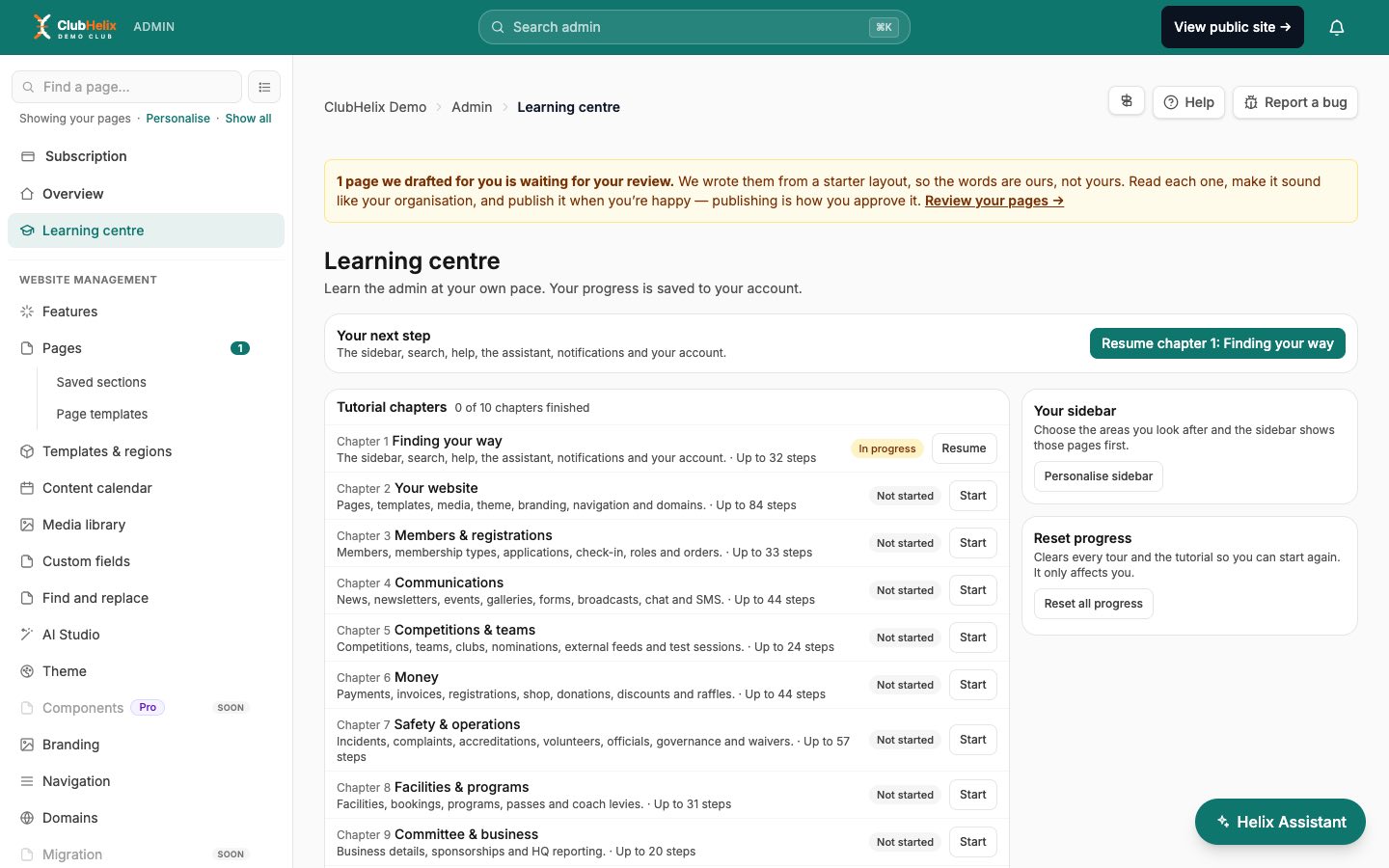
By Friday, the new member should have their own pages under their belt. Now widen the view. The Learning centre, near the top of the sidebar, holds a ten-chapter main tutorial. Chapter 1, Finding your way, covers the sidebar, search, favourites, the command palette, help, the Helix Assistant, notifications and account security. Chapters 2 to 10 then walk each area in turn, page by page: your website, members and registrations, communications, competitions and teams, money, safety and operations, facilities and programs, committee and business, and setup and integrations.
You don't need the new member to finish all ten. Ask them to do chapter 1 and the chapter for their own area, then skim the chapter headings so they know what else exists. The tutorial opens each page for them as it goes, which makes it a decent map of the whole platform. Chapters for pages their role can't open are listed as Not available to you, with the reason, rather than hidden.
If they get stuck, they can ask the Helix Assistant how a part of ClubHelix works. It reads the help wiki before it answers.
Days 6 and 7: a real task, then a check-in
Give them one small piece of real work that uses their new skills with the safety net still on. A treasurer might reconcile last month's online payments. A secretary might draft the minutes of the next meeting. A communications officer might schedule a news post. Pick something where a mistake is easy to spot and fix.
Then hold a 15-minute check-in. Ask:
- What did you find easy to locate, and what took you three attempts?
- Is there a page you were told about but haven't used?
- What are you still unsure you're allowed to do?
Write the answers down. They're a free review of your own handover, and they go straight into the notes for next year's.
What the tours can't do
It's easy to oversell built-in training, so here are the limits.
- Tours point at what's on screen. They explain where things are and what they do, but they don't teach your club's rules. Your refund policy, your approval process and your decisions about what's free for members belong in your own handover notes.
- Some steps are skipped. If a control isn't on the page, such as an empty list or a panel your plan doesn't include, that step is skipped. So a tour may have fewer steps than the Learning centre says. It shows "up to" a number for that reason.
- Finished isn't the same as learnt. A tour counts as finished when someone presses Finish or skips it. It doesn't test understanding. The day 6 task is how you find out whether it stuck.
- Your most-visited pages are counted in one browser. The pages someone opens most often can also shape their sidebar, but that tally lives in that browser. On a new device it builds up again.
A one-week summary you can paste into an email
Day 1 – 30-minute call, then sign in and look at the Overview. Day 2 – Personalise the sidebar to your role. Days 3–4 – Take "Tour this page" on your four or five main pages, doing one real job on each. Day 5 – Learning centre: chapter 1 and your own chapter. Days 6–7 – One real task with a buddy on hand, then a 15-minute check-in.
Frequently asked questions
What if the new member isn't confident with computers?
Slow the plan down rather than skipping steps. Tours go at the reader's pace and can be repeated as often as they like, which suits a nervous user better than a one-off demo. Pair them with a buddy for the day 6 task, and don't give them more than one new page a sitting.
Should the outgoing committee member still be involved?
Yes, for the conversation on day 1 and for questions in the first fortnight. They shouldn't stay as a login holder. Their access should be removed on the day the new person's is added.
How do we know it worked?
Check the day 7 answers, then ask the new member to run one of their recurring jobs unaided in week three. If they can, the handover held.
Next steps
A handover that depends on one volunteer's memory fails every time the committee changes. Software that teaches its own screens takes some of that load off the outgoing person, and leaves your handover notes for what only your club knows. If you'd like to see how it feels, create your club's system and open the Learning centre.
Keep reading — the handover checklist covers the property side of a committee change, and the induction pack sets out the first 90 days.

