Themes & branding
Your colours, your crest, everywhere.
Five default themes plus full control over colours, fonts and logos, twenty hosted fonts (and your own on Pro), a choice of header and footer layouts, and custom CSS on Pro. Looks right out of the box.
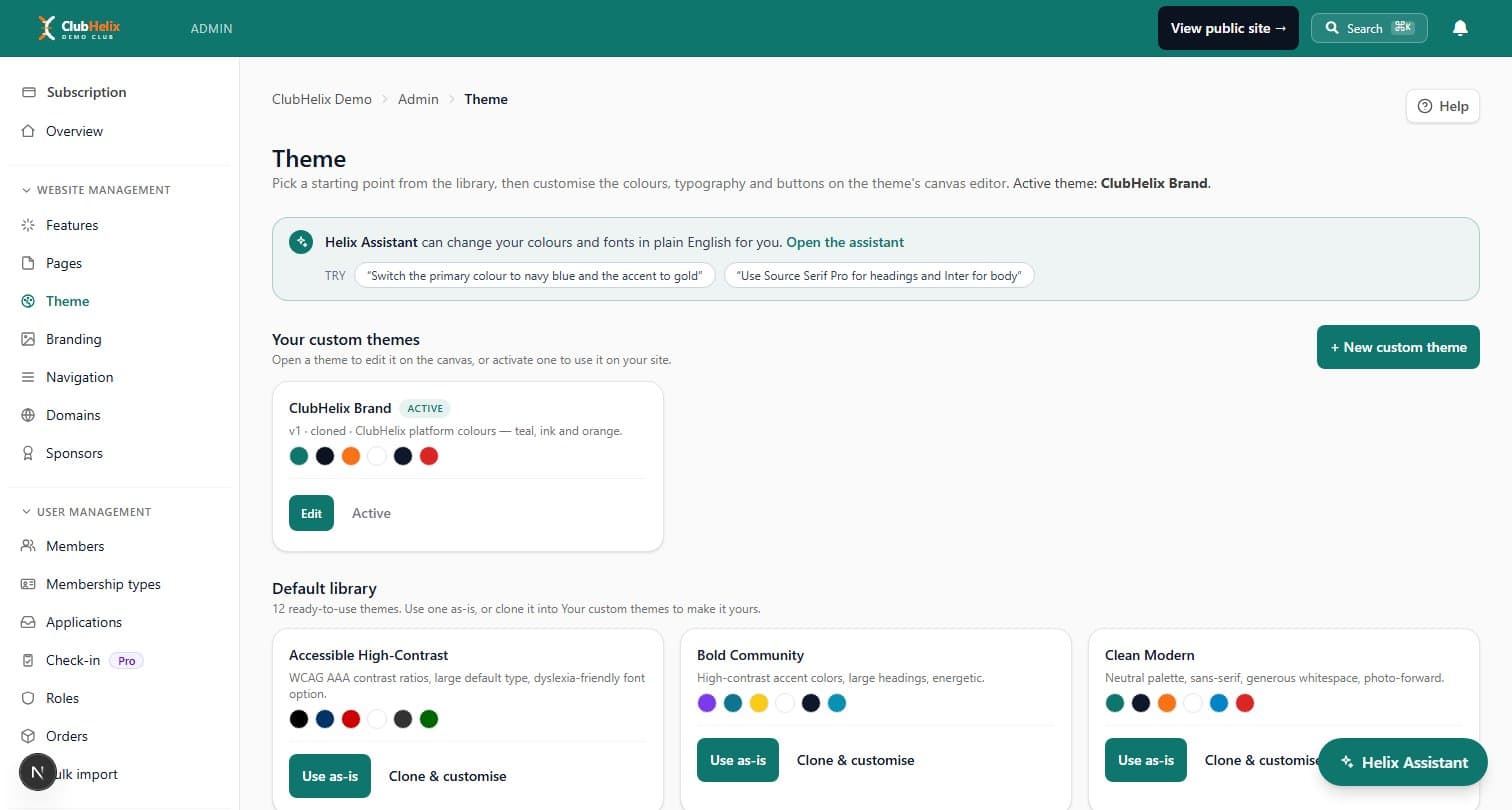
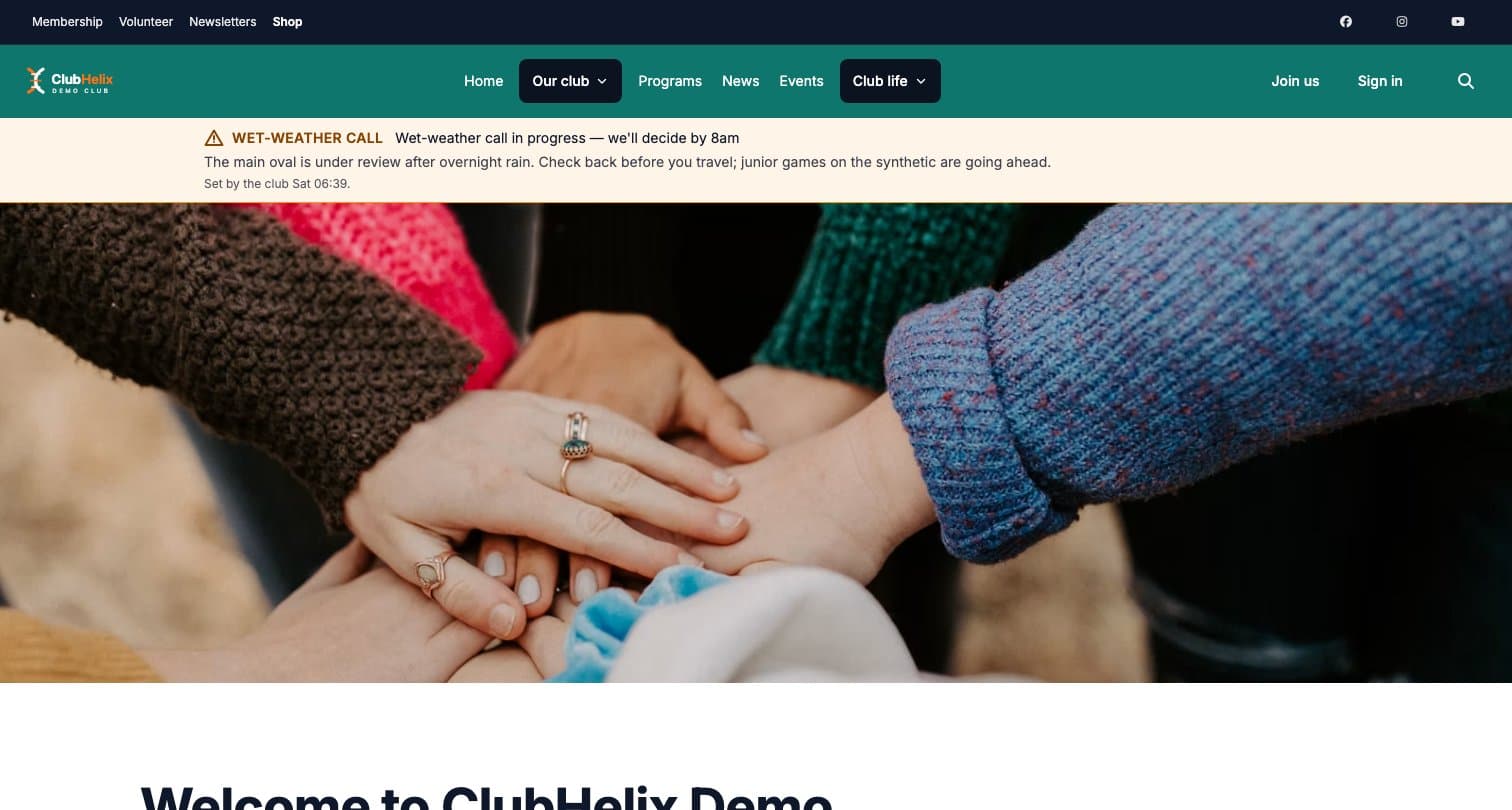
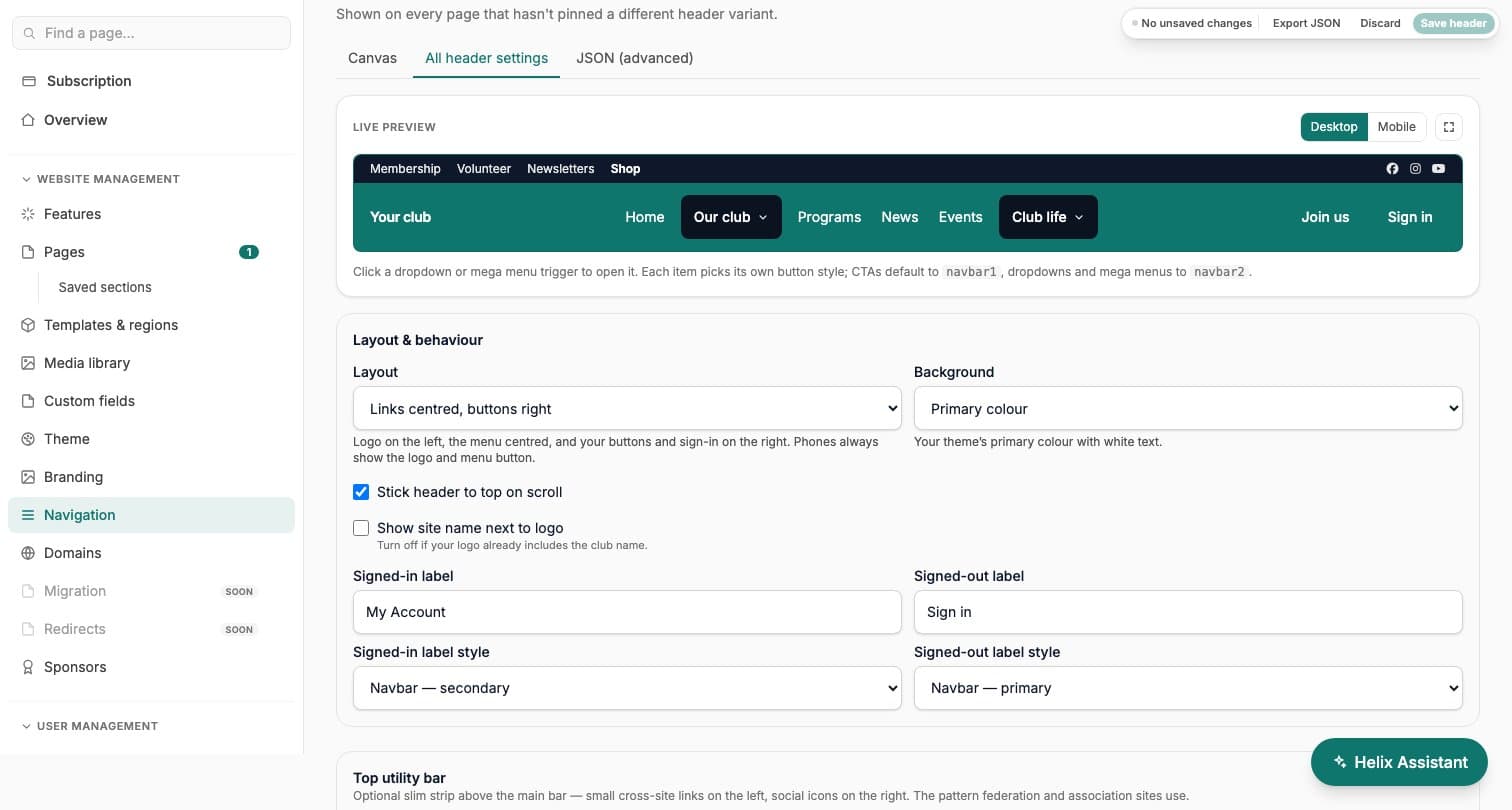
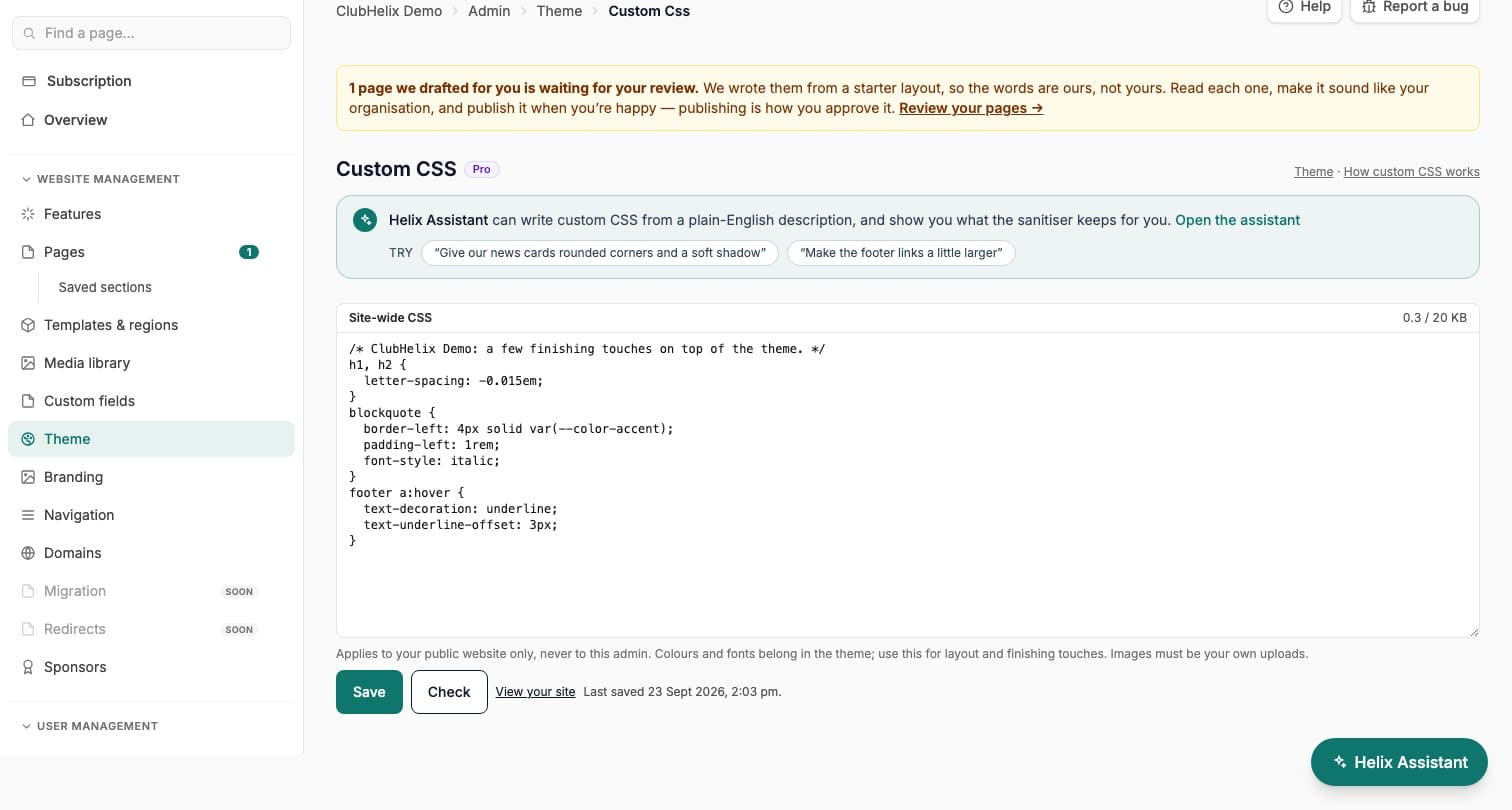
Great club website design shouldn’t need an agency. Pick a starting point from the theme library, then make it yours: colours, typography, corner radii and button styles are all editable, with no CSS required. If someone on the committee does know CSS, the Pro plan lets them add their own, within limits that keep the site safe.
Theme gallery
Start from a look that already works
Your custom themes and the default library sit side by side as colour-swatch cards. Use a library theme as-is with one click, clone & customise it into your own, or start a custom theme from scratch — and a cloned theme can always be reset back to the library original.
Want a whole starting site, not just a look? Browse the ready-made club website templates in the template gallery.
Canvas editor
Click the thing you want to change
The theme editor is a mock club homepage drawn in your theme: click the navigation bar, a heading, a card, a button or the footer, and its settings open beside the canvas. Pick colours with a swatch picker or paste a hex value — a palette row under every picker holds your brand colours, so a button variant can reuse a saved colour in one click.
Choose fonts from a searchable list of fonts your site serves, set heading sizes, weights and corner radii, and flip between desktop and mobile viewports as you go. Custom variables — and JSON export/import — are there when you want them.
Fonts
Fonts every visitor actually sees
Choose from twenty open-licence font families served from our own servers, plus the system fonts, so the font you pick is the font every visitor sees, on every phone. Theme default puts a field back to the standard font.
On the Pro plan, upload your club’s own fonts as WOFF2 files, up to 500 KB each and one per weight, once you confirm the club is licensed to use them on a website. Move to a lower plan and they are kept but not used; they return when you move back.
Design settings
Spacing, cards and text that scales
Set the space between sections (Compact, Standard, Roomy or Spacious), a shadow and border for content cards, and a smallest and largest size for headings and body text, so type scales smoothly from phone to desktop.
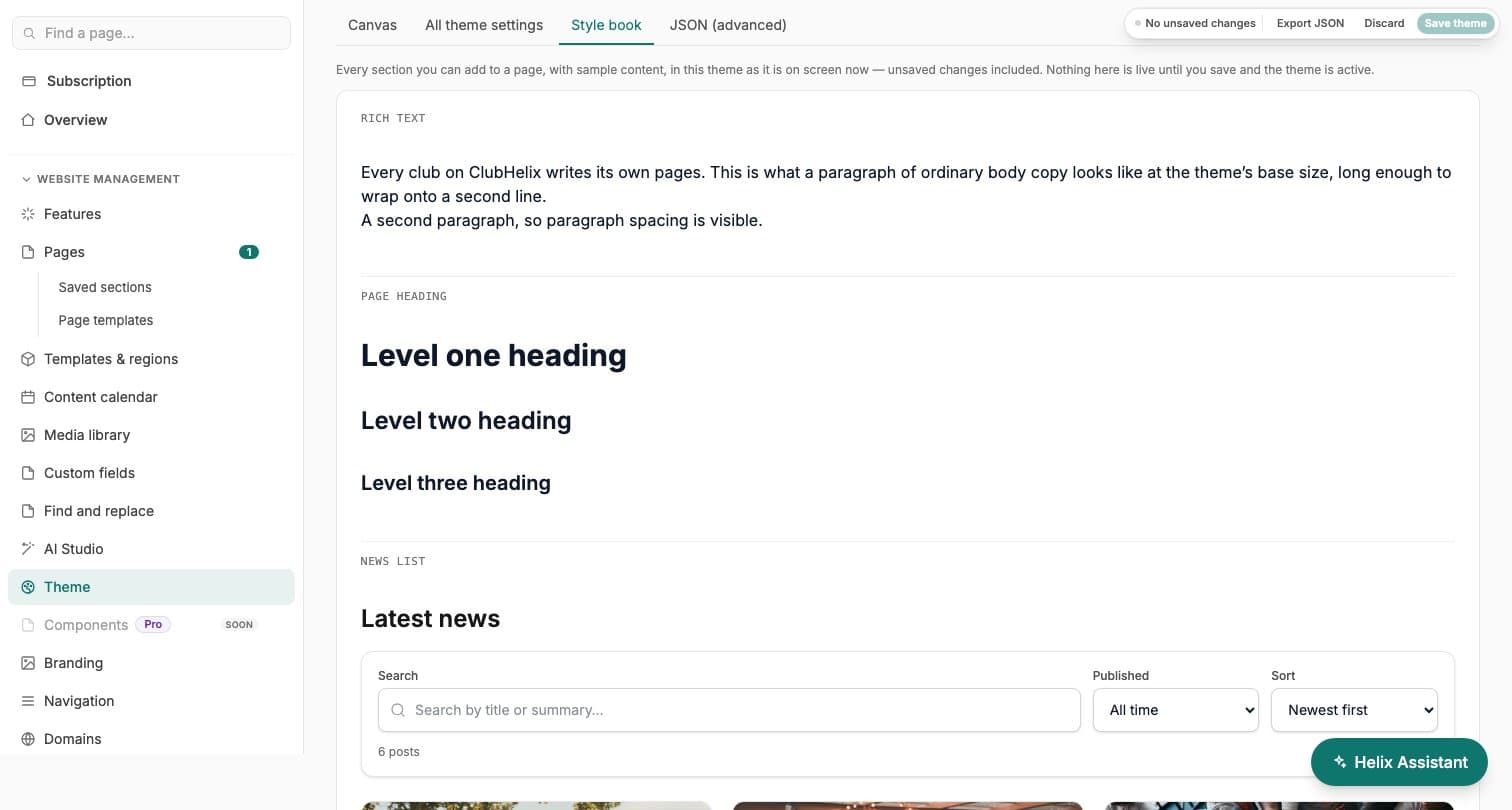
The Style book tab draws every kind of section you can add to a page in the theme you are editing, unsaved changes included, so you see the whole site before you save.
Section styles
Make one section stand out
Any section in the main column of a page can take a style: a hero for the opening banner, an accent band in your brand colour, a narrow column for long reading, two columns, or a full-width image. Styles switch on for your site the first time an admin picks one, so nothing on an existing site changes until you choose, and the picker says so in plain words when a style could make text harder to read.
Custom CSS
Your own CSS, within safe limits
On the Pro plan, Theme → Custom CSS takes a site-wide stylesheet of up to 20 KB, and any section in the main column can carry up to 2 KB of its own. Every rule is checked when you save and again each time the page is served, and the editor lists anything it removed and why.
The limits keep a stylesheet from breaking the site or reaching beyond it. It can’t import other stylesheets or load web fonts, it can use images only from your own uploads, it can’t pin fixed or sticky overlays over the page, and it applies to your public site only, never your admin screens. Move to a lower plan and your CSS is kept but not shown; it comes back when you return to Pro.
Your brand
One identity, from homepage to inbox
Branding follows you across every surface: the public site, transactional emails and the member portal all pick up your club logo and branding automatically. Buttons track your brand colours until you deliberately restyle them, so changing your primary colour re-dresses the whole site in one move — your club colours as a website theme, without a designer on the committee.
Guardrails
Hard to break, easy to undo
A version history records every saved change, with one-click restore to any earlier look, and menus keep a version history of their own, so a navigation change can be rolled back the same way. And a built-in readability check stops you saving body text that fails accessibility contrast against your page background — so an enthusiastic rebrand never makes the fixtures unreadable.
Helix Assistant
Describe the look, get the theme
The Helix Assistant can restyle the site from a plain-English request — “match our jersey colours” — with a full preview before anything saves.


See it with your club's name on it
Spin up a fully-branded site in under 30 minutes, free — no technical skills needed.